Shopify Duplicate Content: What's Actually a Problem and What Isn't
Shopify duplicate content explained. What Shopify already handles automatically, what still needs fixing, and how to diagnose it in Google Search Console.
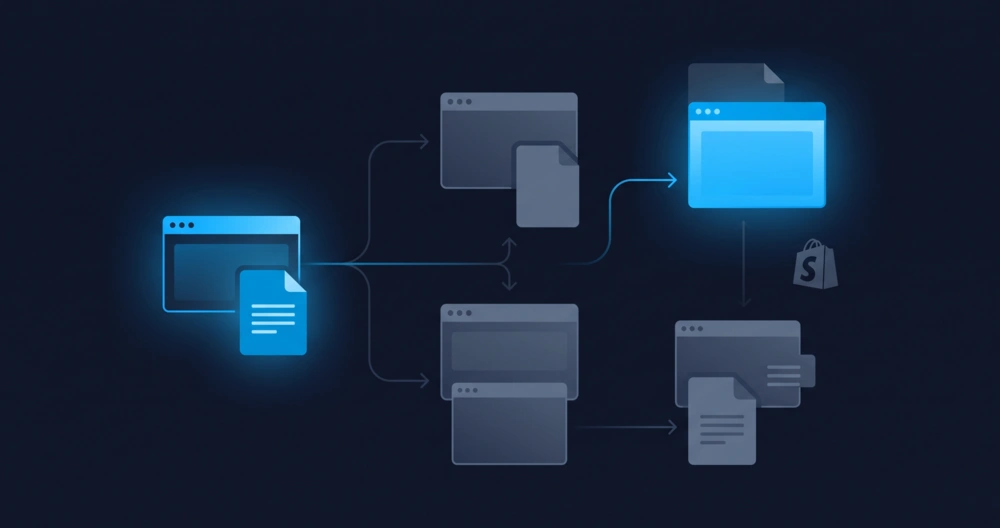
“Duplicate” means two different things on Shopify, and mixing them up wastes a lot of merchants’ time. One meaning is a feature: the Duplicate button you click to copy a product, a section, or an entire store. The other is a technical SEO issue: multiple URLs on your store serving near-identical content, which can confuse Google about which page to rank. This article is about the second one, duplicate content as an SEO problem, not the copy-paste feature.
If you landed here looking for how to clone a product or duplicate a theme section, that’s a different topic. If you’re wondering why Google Search Console is flagging duplicate pages on your store, or why your collection pages don’t seem to rank the way they should, keep reading.
The Question Everyone Asks, and Why the Answer Surprises People
The most common Shopify duplicate content question is about /products/product-name versus /collections/collection-name/products/ product-name. Merchants see both URLs work, both show the same product, and assume Google is indexing two competing pages.
Here’s the part that surprises most people: Shopify already handles this correctly out of the box. The canonical tag on the collection-prefixed URL points back to the clean /products/ version automatically. Same with product variants, a URL like /products/product-name?variant=123 canonicalizes to the base product URL without you touching a single line of code.
This matters because a lot of SEO checklists and audit tools flag this as an issue to fix, when in most cases there’s nothing to fix. If your theme is unmodified and you haven’t installed an app that overrides canonical tags, this particular duplicate is already handled. Chasing it wastes time that’s better spent on the cases where duplicate content is a real, unresolved problem.
Where Duplicate Content Is a Real Problem on Shopify
The automatic canonicalization covers the basic cases. It doesn’t cover everything, and this is where the actual problems live.
Collection pagination. Paginated collection pages (page 2, page 3, and so on of a collection) need a self-referencing canonical tag on each page, pointing to itself, not blanket-canonicalized to page 1. Get this wrong and you either lose indexation on later pages or create ambiguous signals about which page should rank. This isn’t handled automatically the same way product variants are, it depends on your theme’s collection template.
Filtered and faceted navigation. Filters for size, color, price, and sorting options generate URL parameters, and every combination is technically a new crawlable URL. A collection with even a handful of filter options can generate hundreds of near-identical URL variations. Shopify doesn’t automatically prevent these from being crawled and indexed as separate pages, that has to be configured deliberately, usually through canonical tags on filtered views or parameter handling in Google Search Console.
Custom landing pages that mirror product content. If you’ve built a landing page that repeats a product description almost word for word (a common pattern for paid ad landing pages), that’s duplicate content Shopify has no way of knowing to canonicalize, because from its perspective these are two intentionally separate pages.
Multi-theme or migration duplicates. Old theme files left active after a migration, staging URLs that got indexed before launch, or duplicate blog posts carried over from a platform migration are all duplicate content Shopify won’t clean up on its own.
Duplicate content across international or multi-language storefronts. If you’re running the same product content across multiple regional domains or subdirectories without proper hreflang implementation, that’s a duplicate content problem specific to multi-market setups, and one I see missed often in stores expanding beyond a single country.

Your Review App Just Duplicated Your Shopify Product Schema
Your theme adds Product schema. Your review app adds more. Your SEO app adds a third. Here's how to find and fix duplicate schema before it costs you rich results.
Why Are My Pages Duplicating on Shopify?
If you’re seeing this in Google Search Console under “Duplicate without user-selected canonical” or “Duplicate, Google chose different canonical than user,” it usually traces back to one of the cases above, most commonly filtered navigation or a canonical tag that got overridden by an app. Apps that inject their own SEO logic (some review apps, some page builders) can sometimes overwrite the canonical tag Shopify would otherwise set correctly. This is worth checking directly in your page source rather than assuming.
How to Check What’s Actually Happening
Before fixing anything, confirm what’s actually duplicated:
-
Google Search Console, Coverage report. Look specifically for “Duplicate without user-selected canonical” and “Duplicate, submitted URL not selected as canonical.” These tell you Google itself has flagged specific URLs, rather than guessing from a generic checklist.
-
View page source on a few product and collection pages. Search for
rel="canonical"in the head and confirm it points to the URL you actually want indexed, not a filtered or paginated variant. -
Crawl the site with a tool like Screaming Frog and filter for pages with duplicate title tags or meta descriptions, which often overlaps with genuine duplicate content, though not always.
Fixing It
Once you know which case you’re dealing with:
-
Pagination: confirm self-referencing canonicals are set on each paginated collection page in your theme’s collection template.
-
Faceted navigation: add canonical tags on filtered URLs pointing back to the unfiltered collection page, or use URL parameter handling in Search Console for parameters that don’t need to be indexed separately.
-
Landing pages mirroring product content: rewrite the landing page copy to be substantially different, or canonicalize it to the product page if it’s meant to funnel directly there.
-
Leftover migration or staging URLs: noindex or redirect these, don’t just leave them live and hope Google ignores them.
-
App-overridden canonicals: check the app’s settings for canonical tag handling, and disable it if it’s conflicting with Shopify’s default behavior.
When to Bring In Help
Checking Search Console and fixing a handful of flagged pages is something most store owners can do themselves. It gets harder to do alone when the issue is at the template level (pagination logic, filter handling baked into the theme), when there’s a conflict between multiple apps writing canonical tags, or when the store has grown large enough that manually checking each page isn’t practical anymore. That’s usually where a proper technical SEO audit, crawling the full site and cross- referencing it against Search Console data, finds problems a manual spot check would miss.
Not sure if what you’re seeing in Search Console is actually a problem? Get a technical SEO review and find out what’s really going on before spending time fixing something that was never broken.

Marshal Gasong
Digital Marketing Specialist and Web Developer with 8 years of experience in SEO, technical audits, and full-stack development. Helped businesses rank on page 1, shipped SaaS products used by thousands, and driven real revenue through search. Currently available for freelance work and open to full-time opportunities.